Fields
Product fields are rectangles that can contain design elements (texts or images)
You can enable the fields feature and add the various fields to the designer.
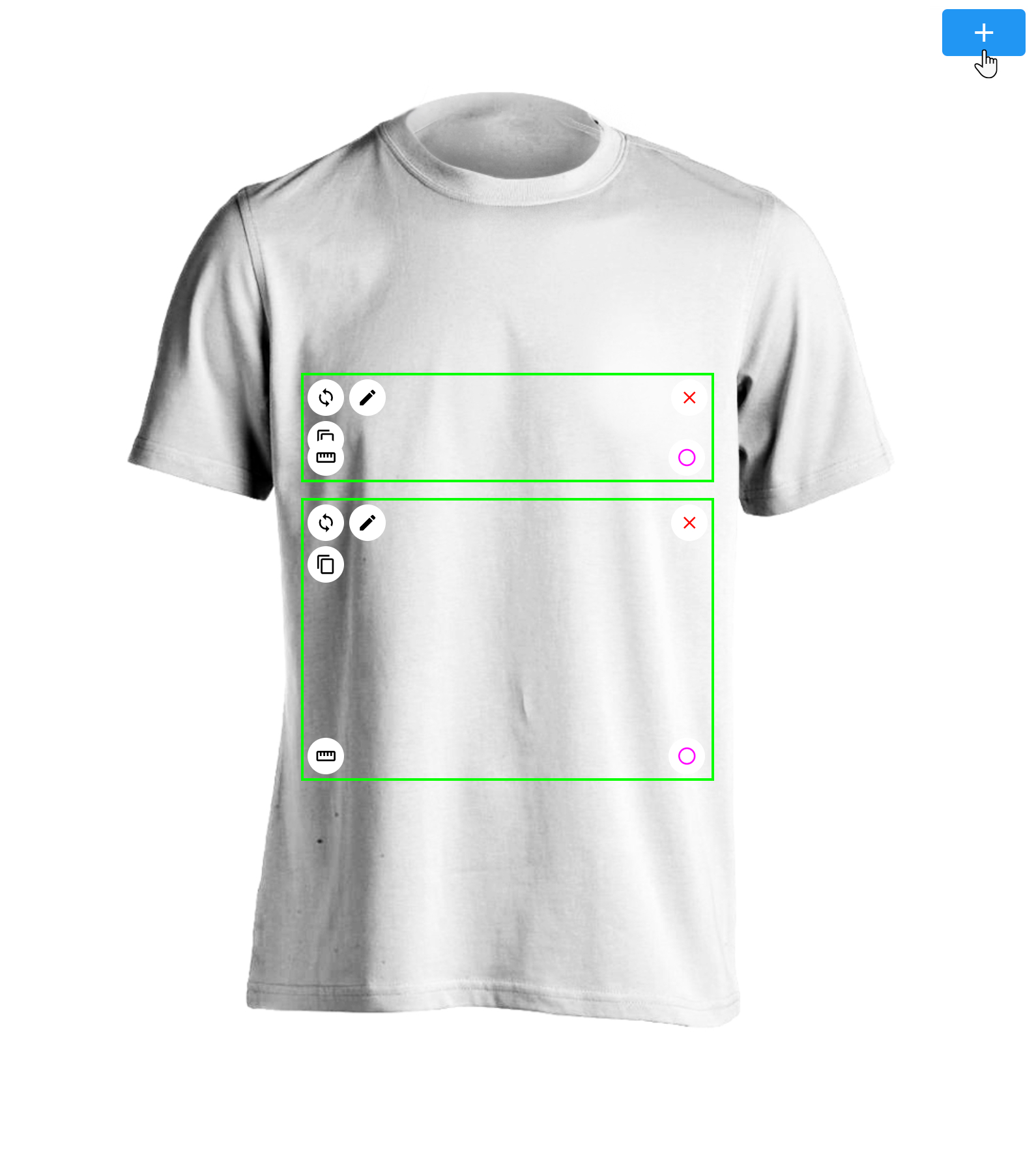
In this example, we will add two fields, one for text and one for an image.
Adding fields
1️⃣ We start by adding the two fields by clicking the add button 
Editing fields
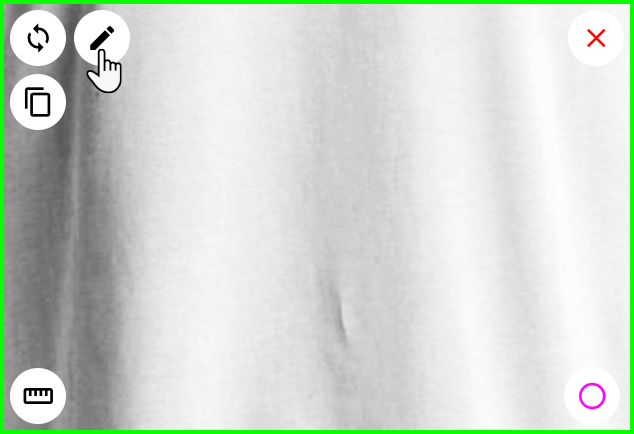
To edit a field, click the edit button
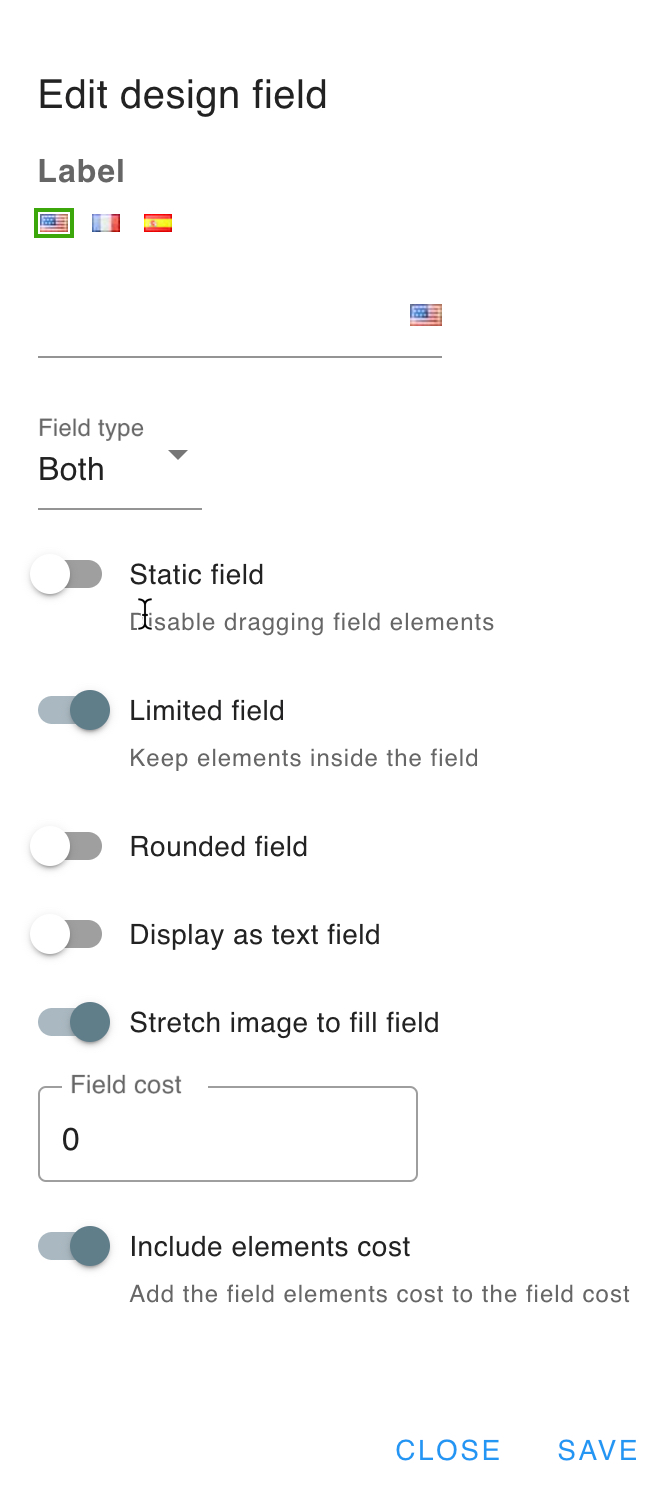
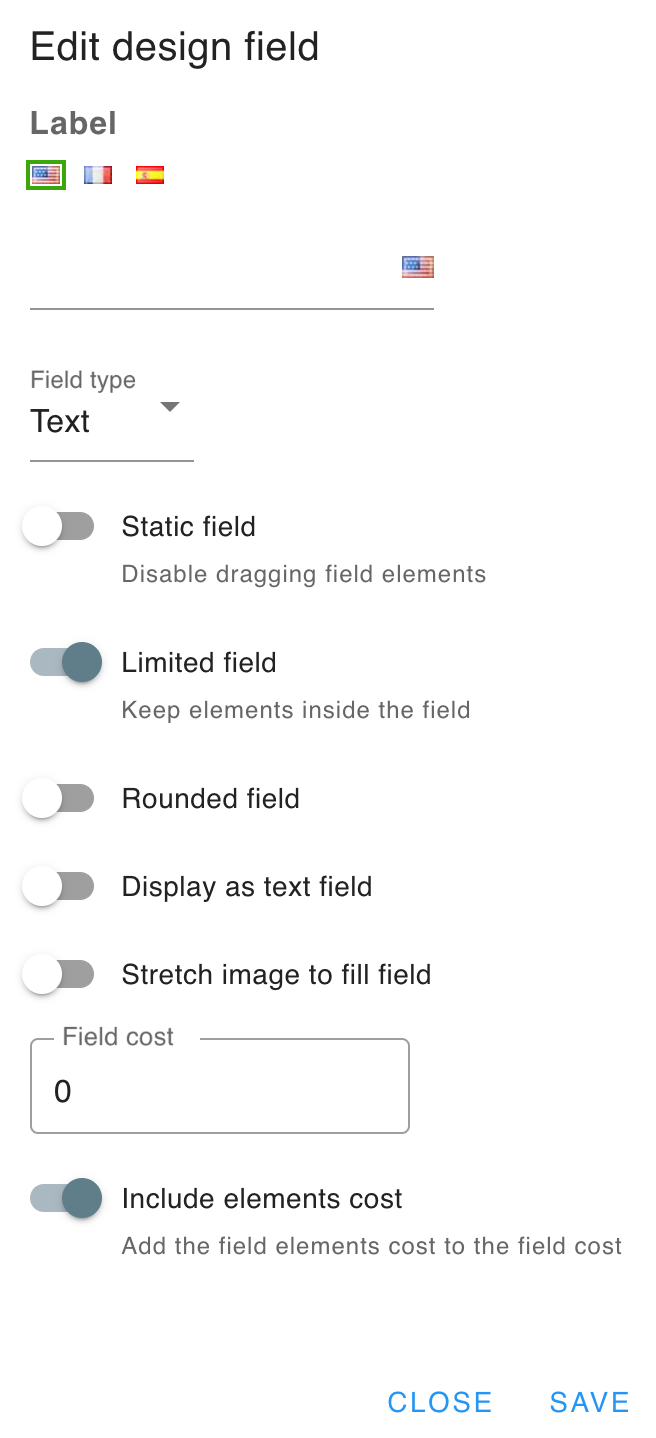
This modal will be displayed
Field type
2️⃣ Next we change the fields properties to make them only accept a certain type of item ( optional)
Text field
3️⃣ We enable the text field option on the first field and we set the label
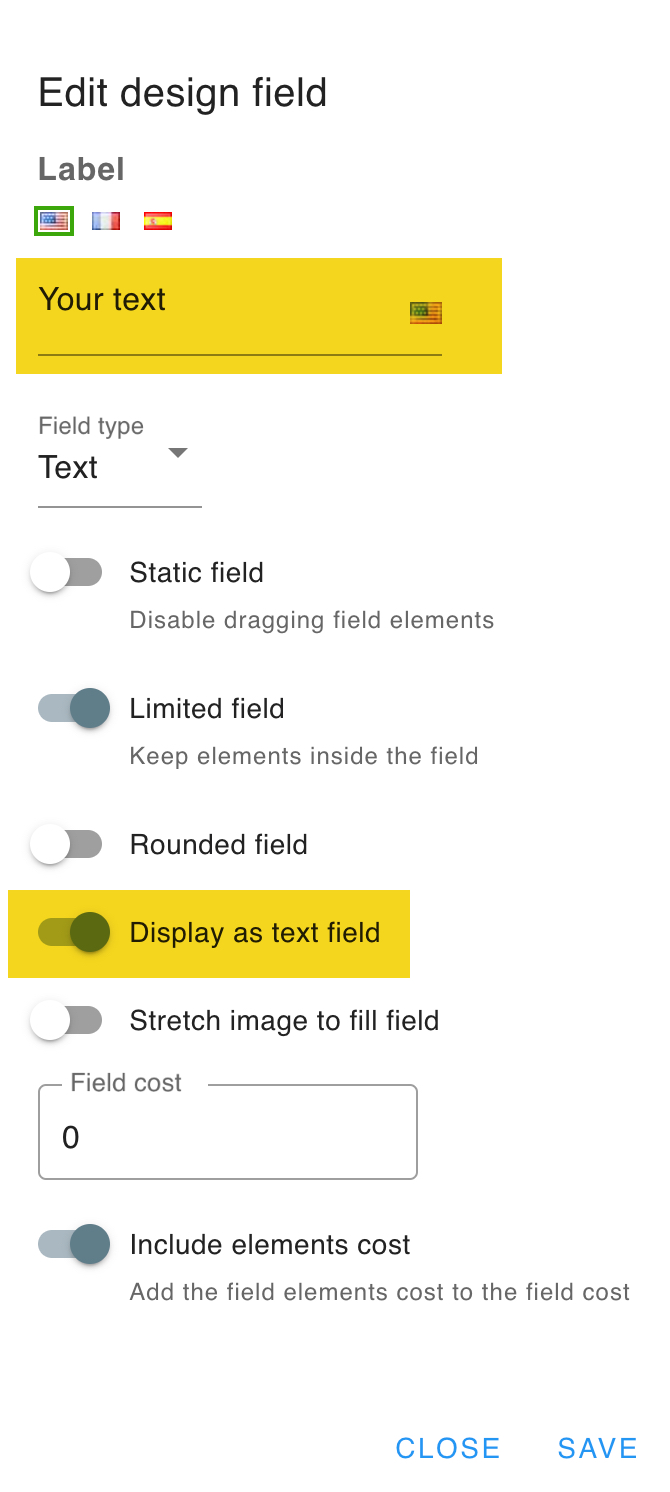
The label will be be displayed like this
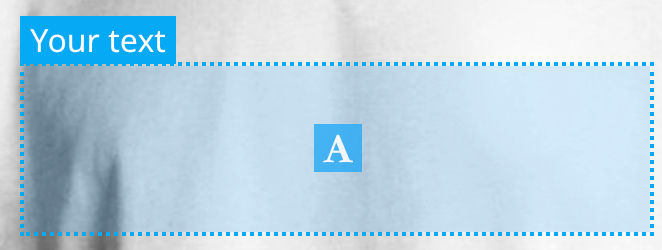
The text field will be displayed like this
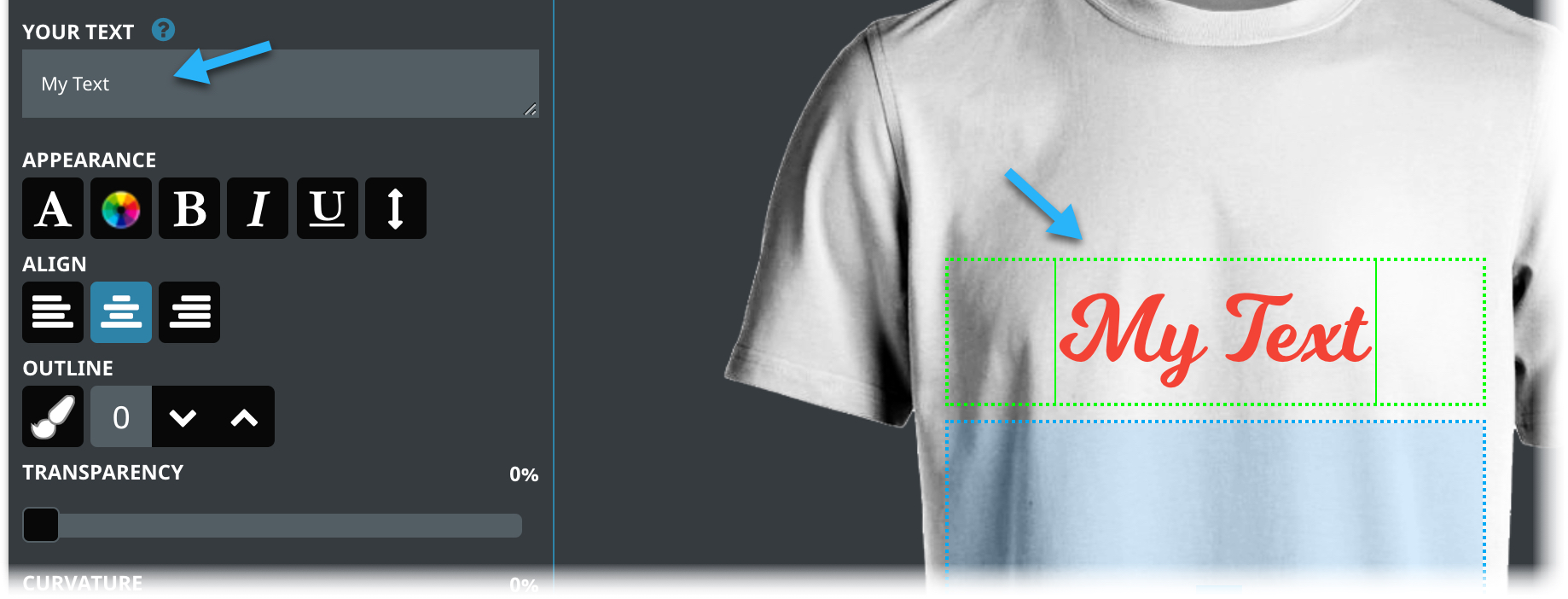
Preferred text size
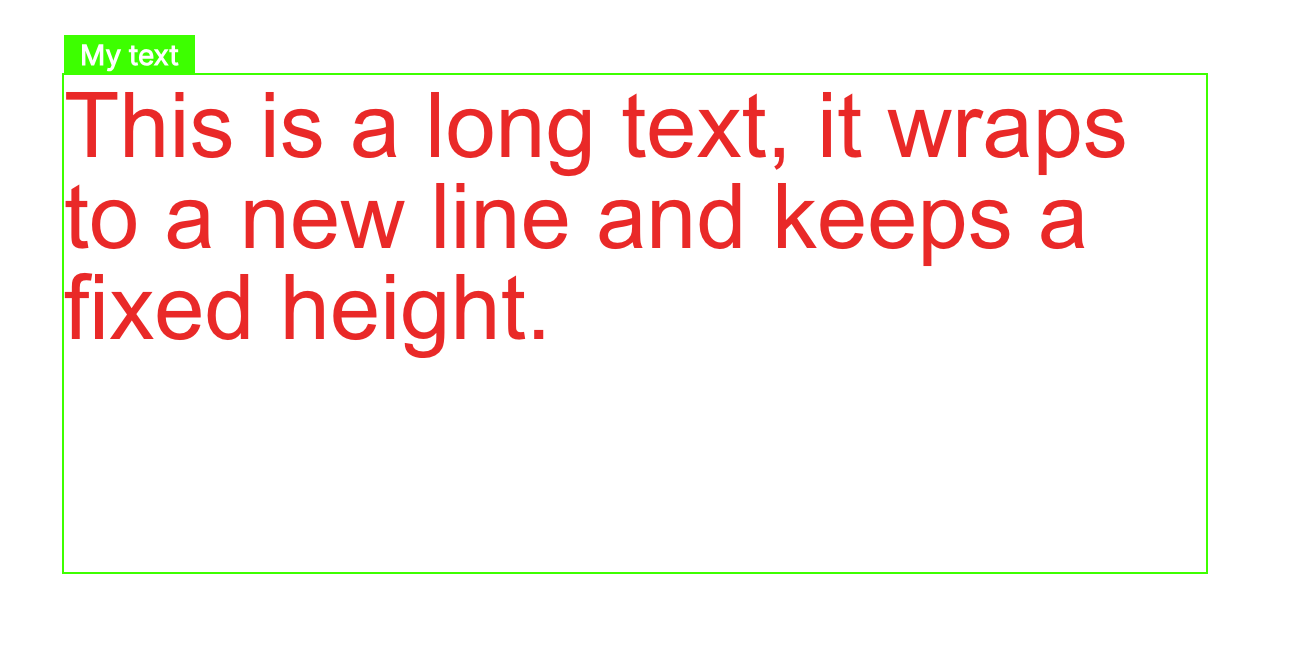
By default, the text is scaled to fit the field, which means that its final size depends on how much text the customer types. If you want the text to be printed at a fixed physical size instead, set the Preferred text size (pt) option in the field settings.
The option is available on fields that have the Display as text field option enabled. Leave it at 0 to keep the automatic behaviour.
When a size is set:
- The text is rendered at that exact size in points, no matter how much text is entered
- Long text wraps onto a new line at the field width instead of shrinking to fit
TIP
The size is converted using the real size of the side, so make sure the real size is configured correctly, otherwise the printed text will not match the requested size.
WARNING
The preferred size is ignored for vertical and curved texts. They fall back to the normal text rendering.
Single item only
Enable this option if the field should hold only one design item.
When it is enabled, adding a text or an image to the field replaces the one already there, and the duplicate button is hidden for that field. Leave it disabled to let customers stack several texts and images in the same field.
Image field
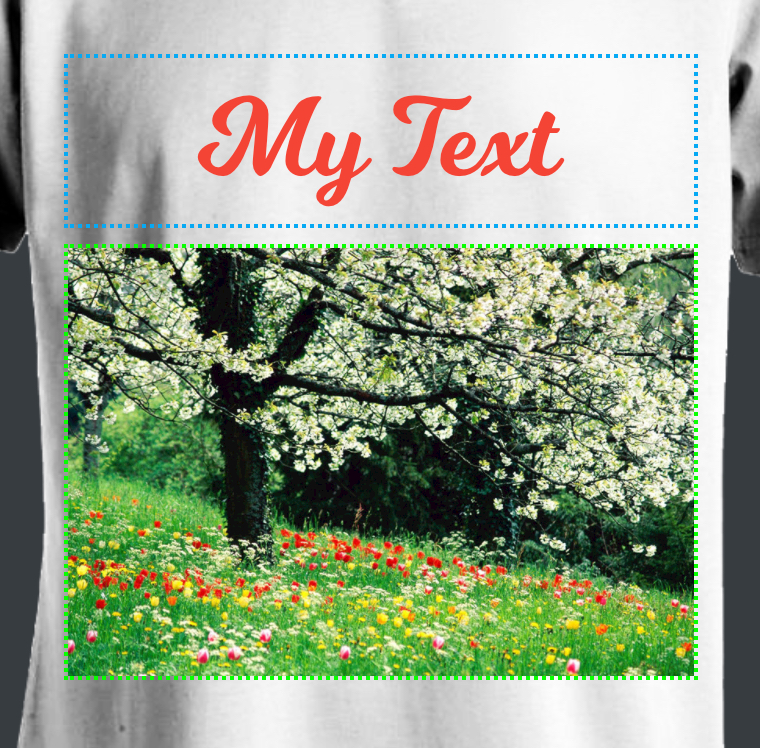
4️⃣ We set the stretch image option on the image field. This will make any image we add to the field fill the whole space.
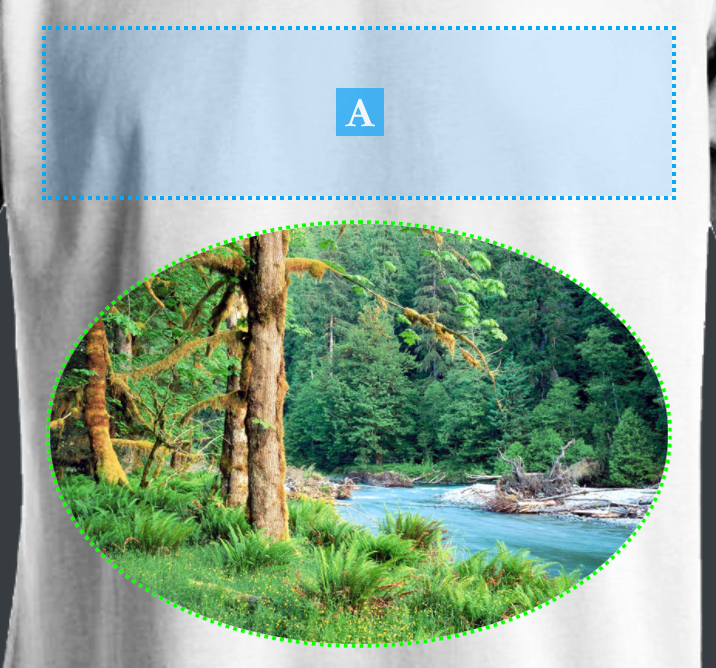
If we enable the rounded field option, we will have this display
Field cost
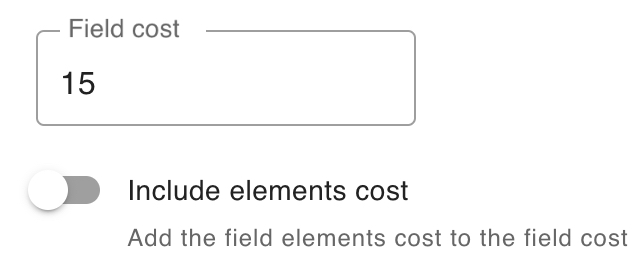
5️⃣ Next, we set the extra cost for each field and choose whether to include the items cost that are inside the field.
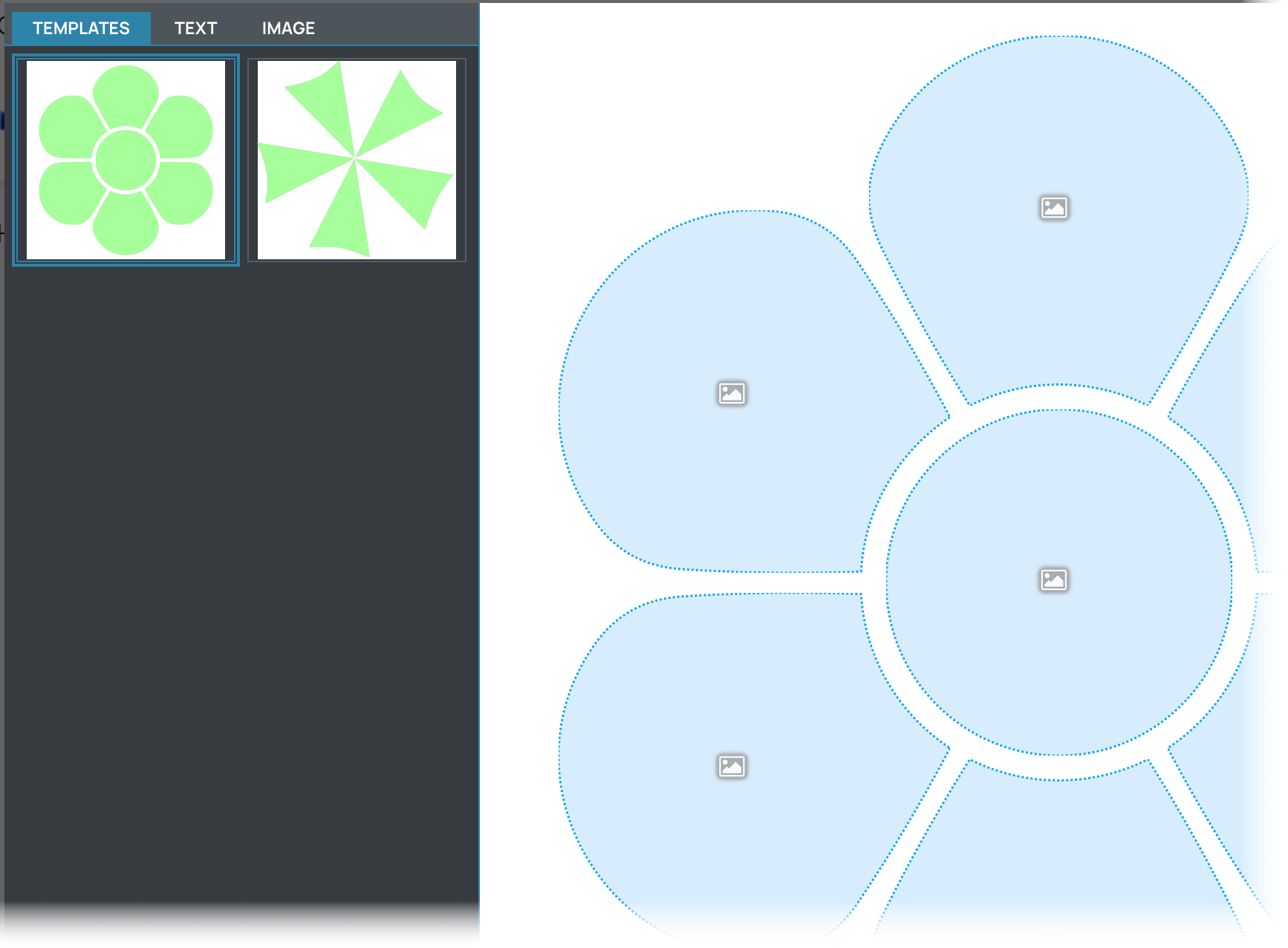
Using templates
You can enable models which are field templates that your customer can pick from.
First, enable the models like this
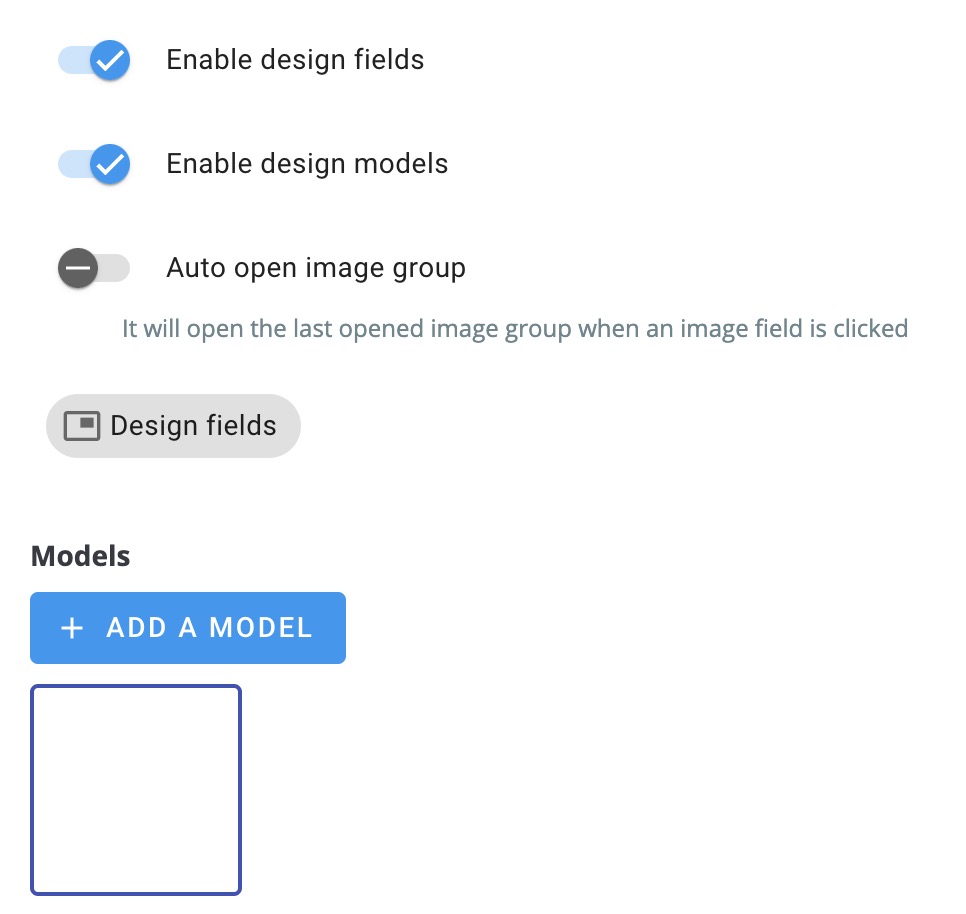
Then add any number of models by the clicking the add button
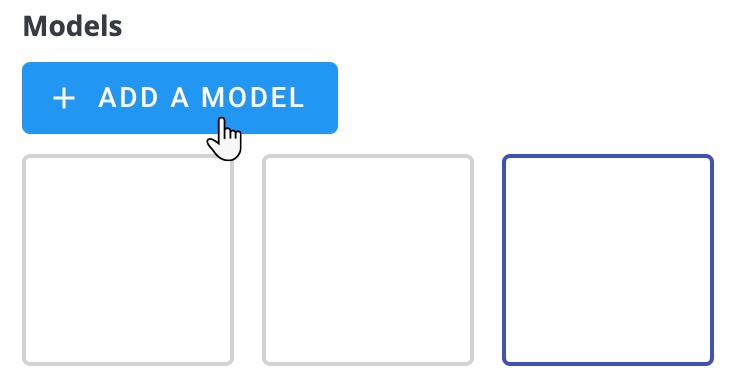
Then you can add fields to each model. The fields layout will be displayed directly.
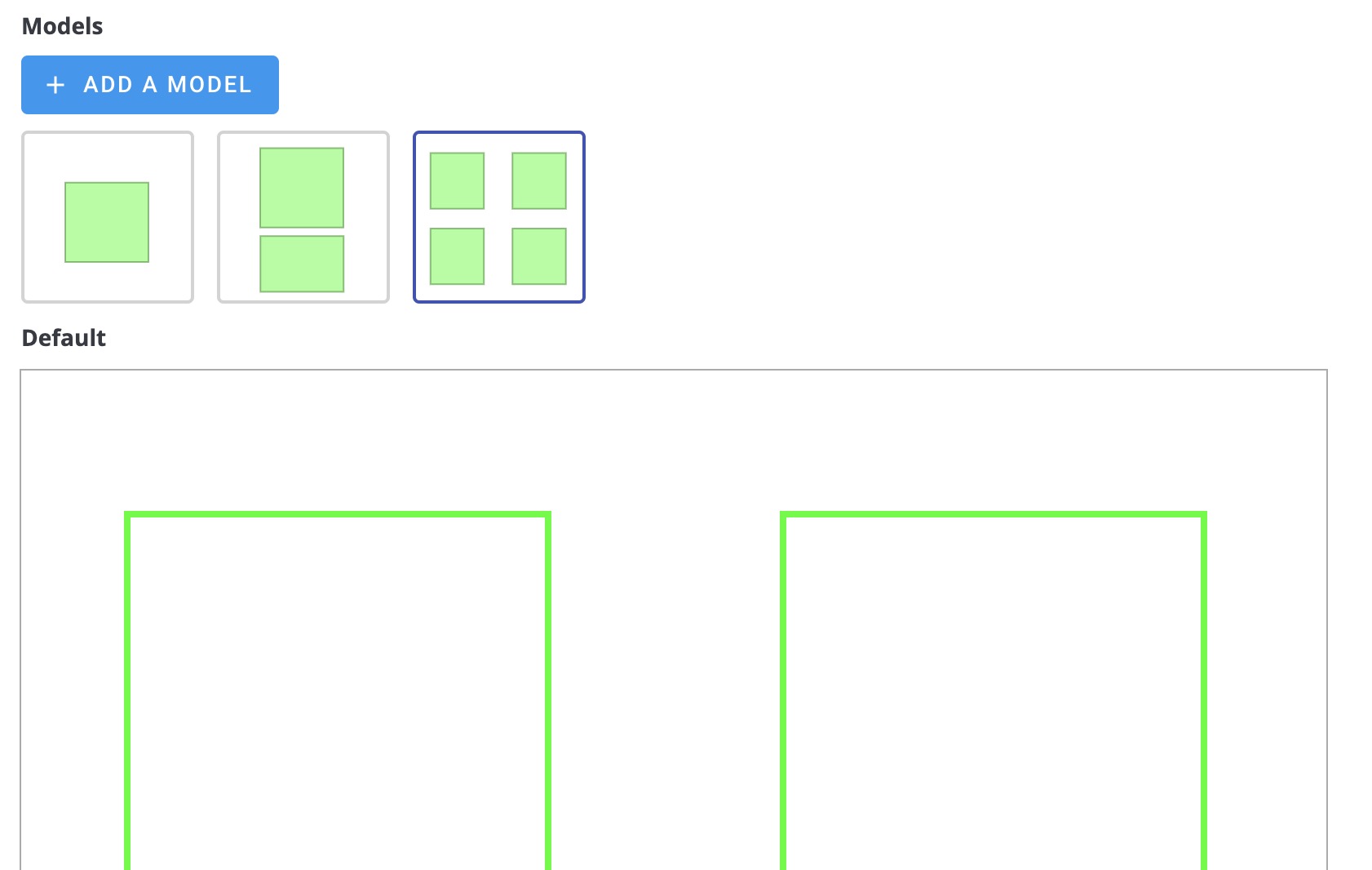
The models will be displayed in a separate tab in the customer interface