Image options
In this tab, you can configure options related to the design images
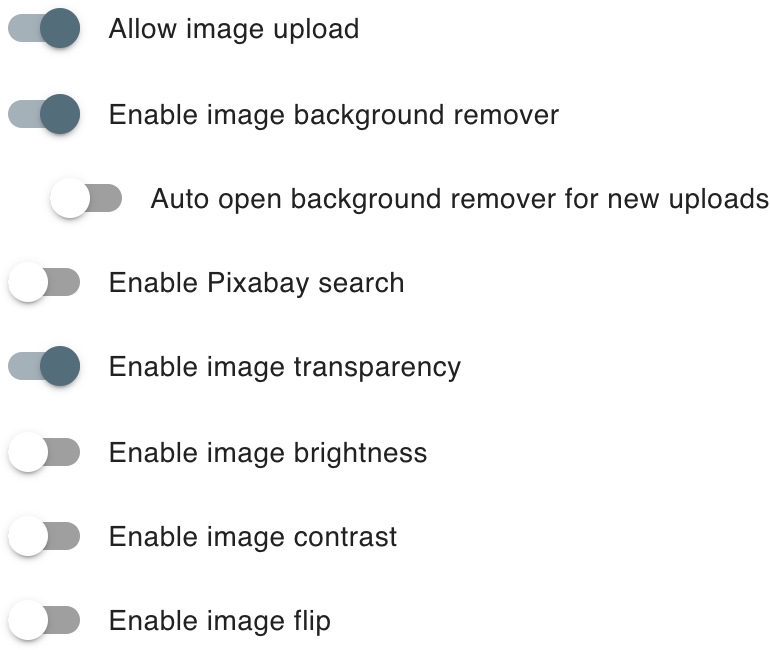
Allow image upload
Enabled customer uploads. You can control the maximum upload size in the main configuration page

Enable image background remover
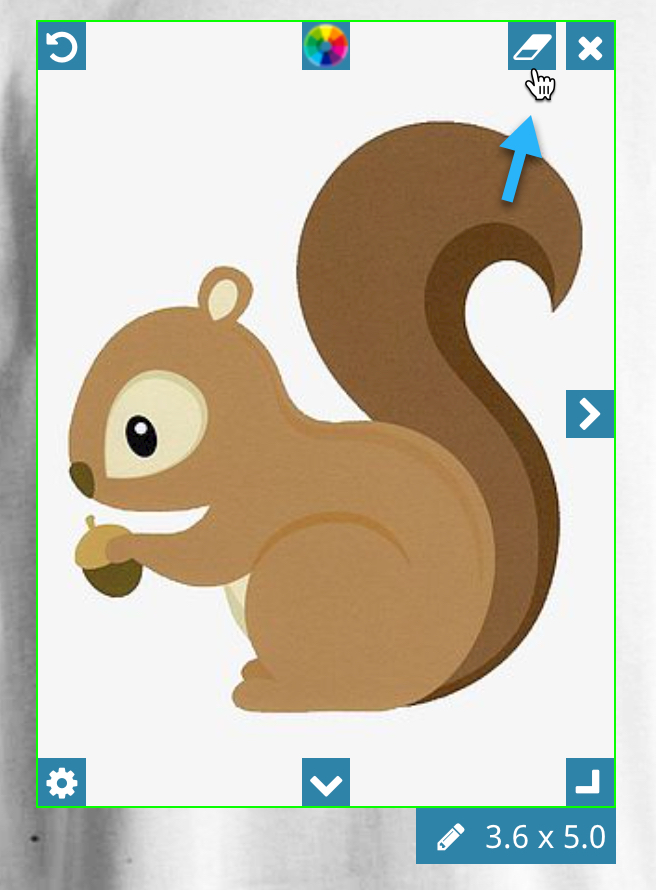
The background remover icon will be displayed in the image tab as well as in the design image icons.
Starting with an image that has a background, for example:

We can remove the background like this
We can adjust the sensitivity to better match the background color variations
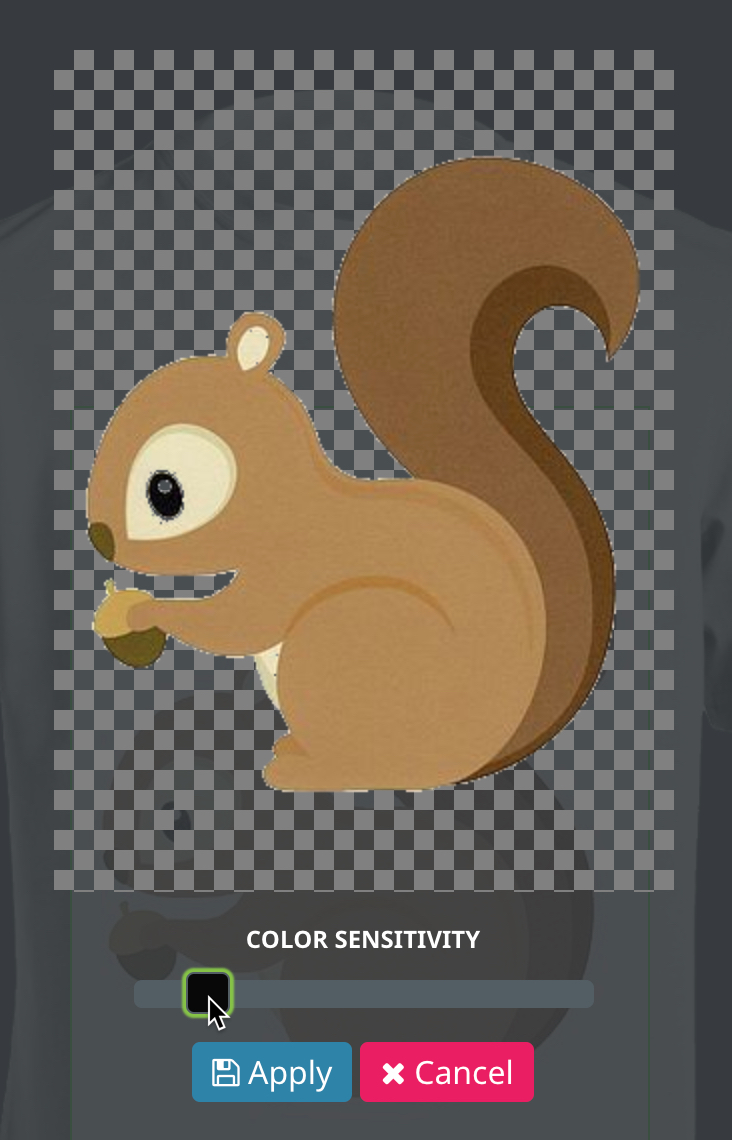
Then we apply to get the result
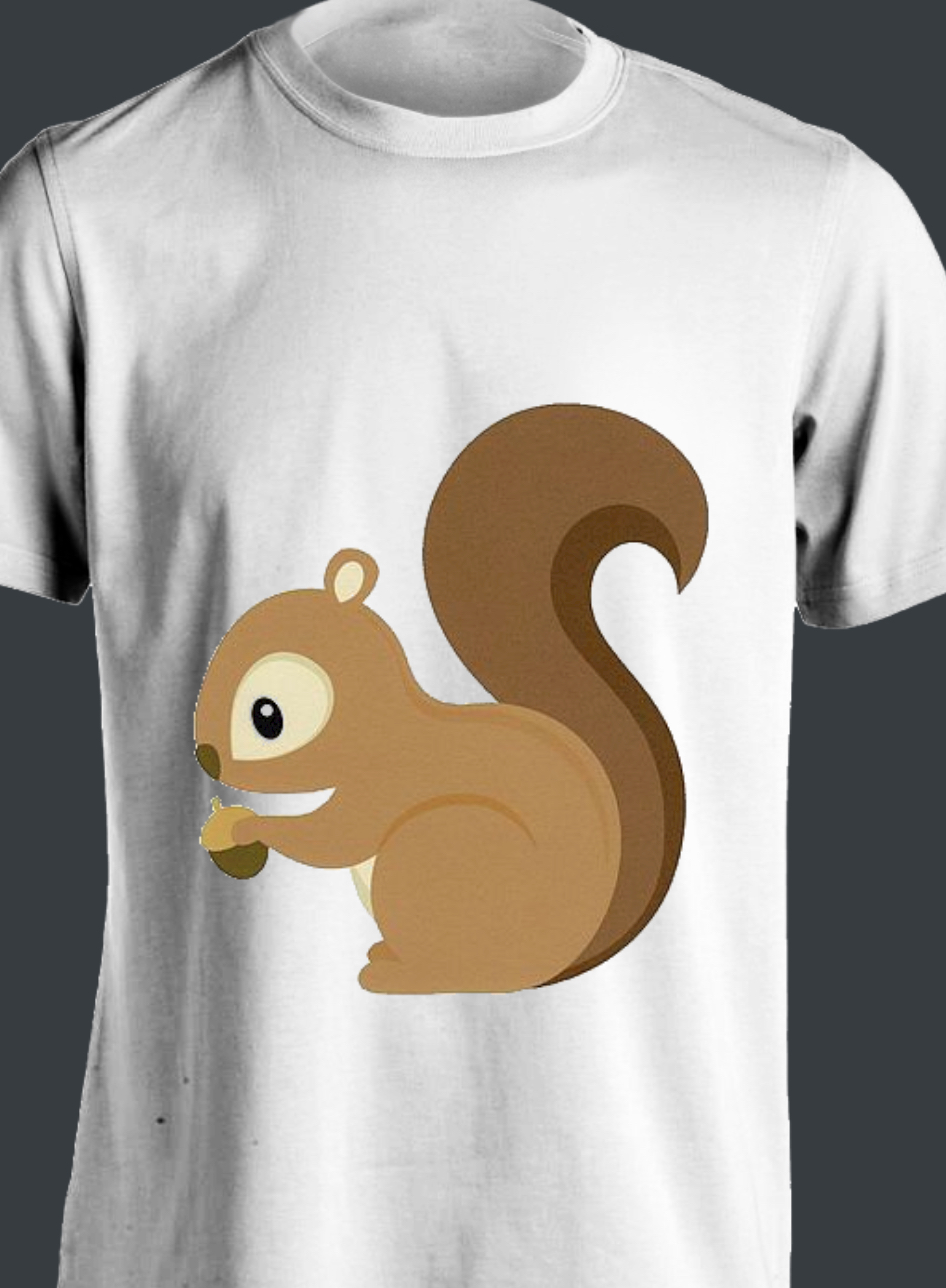
Enable Pixabay search
Pixabay is a free image search service. Before you enable this service, make sure to configure your Pixabay key.
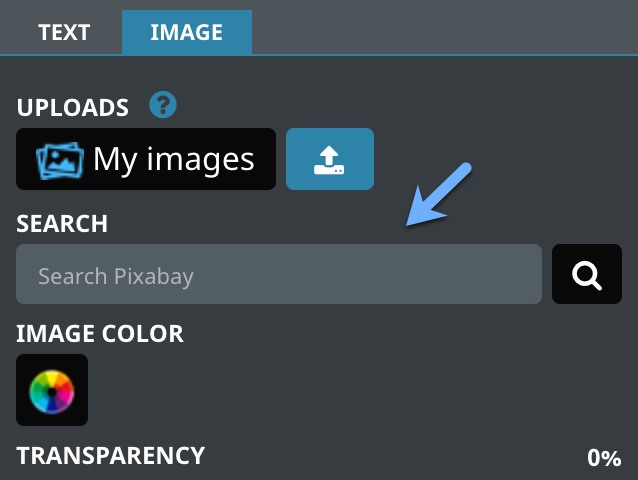
When enabled, the module will display a search field in the Image tab.
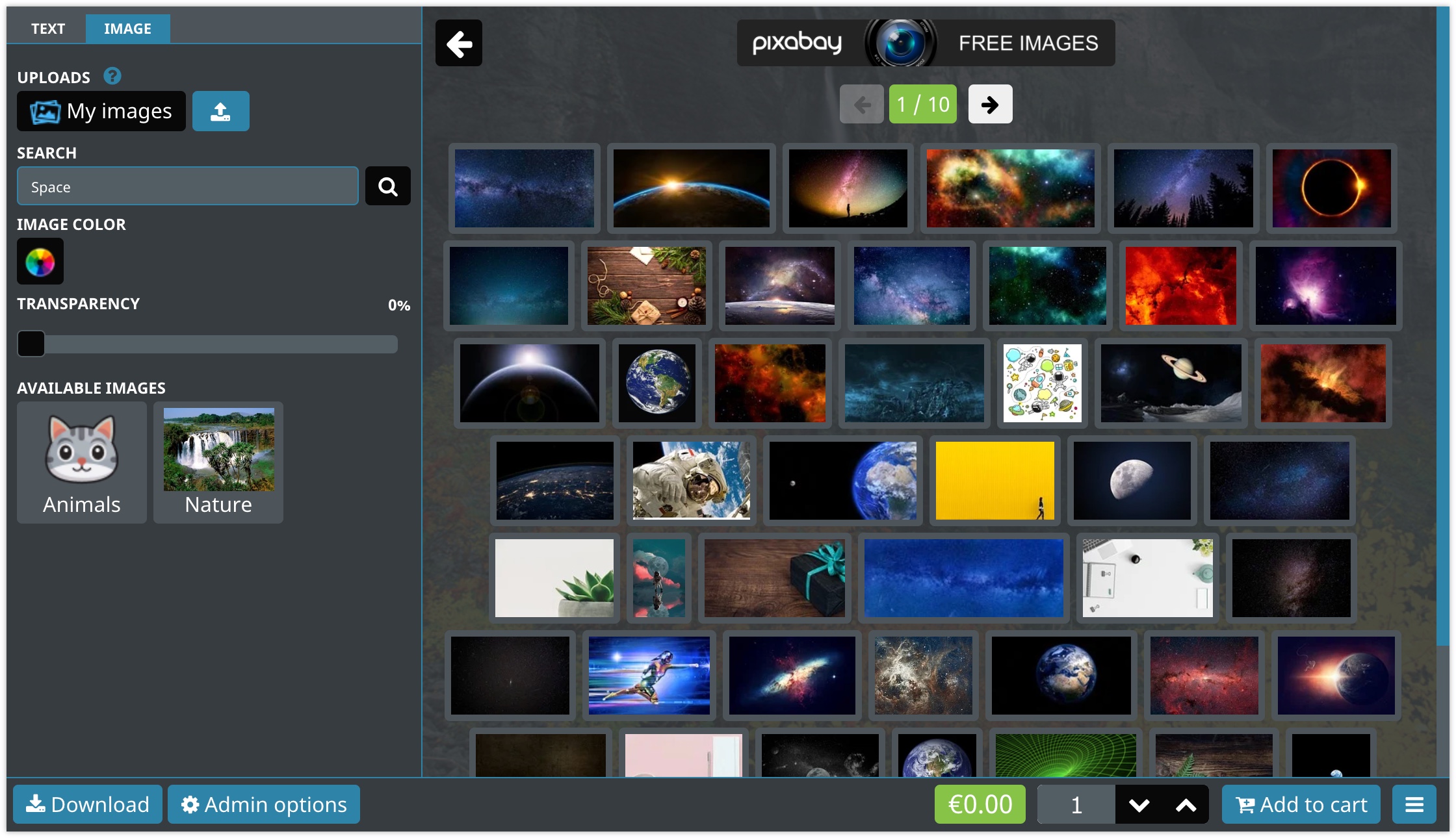
The customer can enter a search term then submit. The search results will be displayed like this.
When the customer clicks and image, it will be magnified and displayed inside an image gallery like this
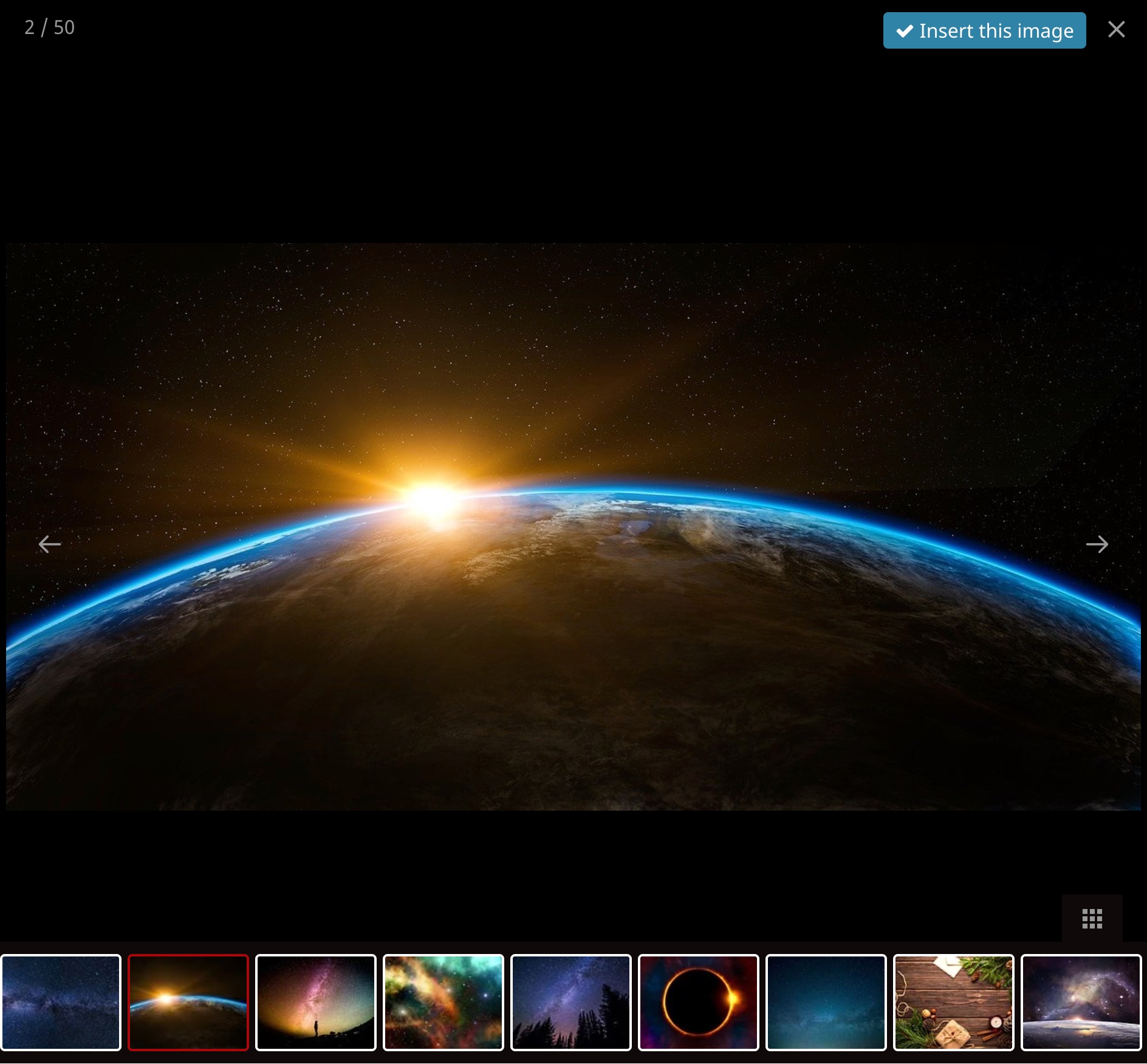
The customer can add the image to the design by clicking the insert button
Enable Instagram image import
Make sure to configure your Instagram App details in the main configuration section
When enabled, this button will be displayed
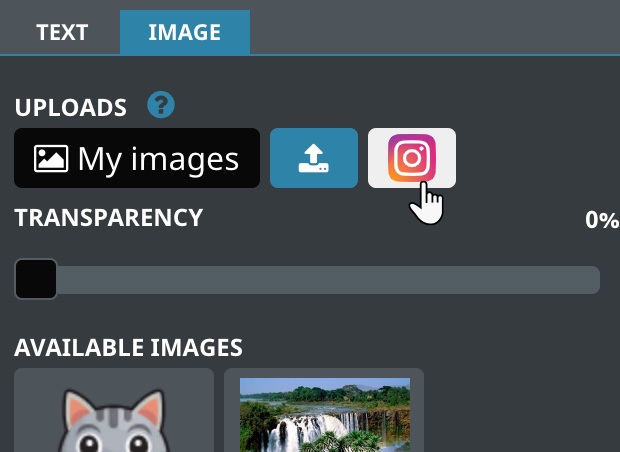
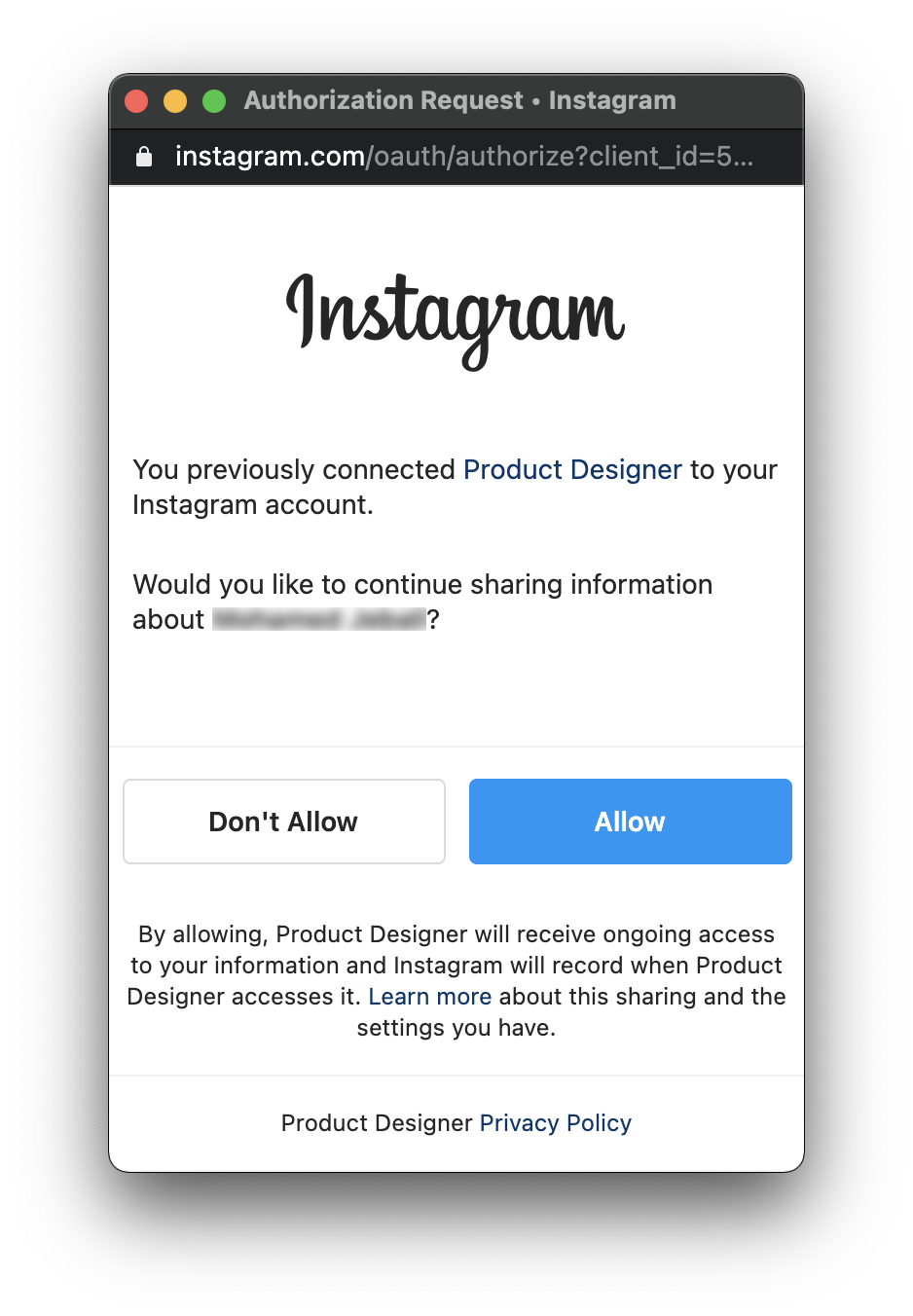
When the customer clicks the button, a popup will open to allow the customer to confirm the app access to their images
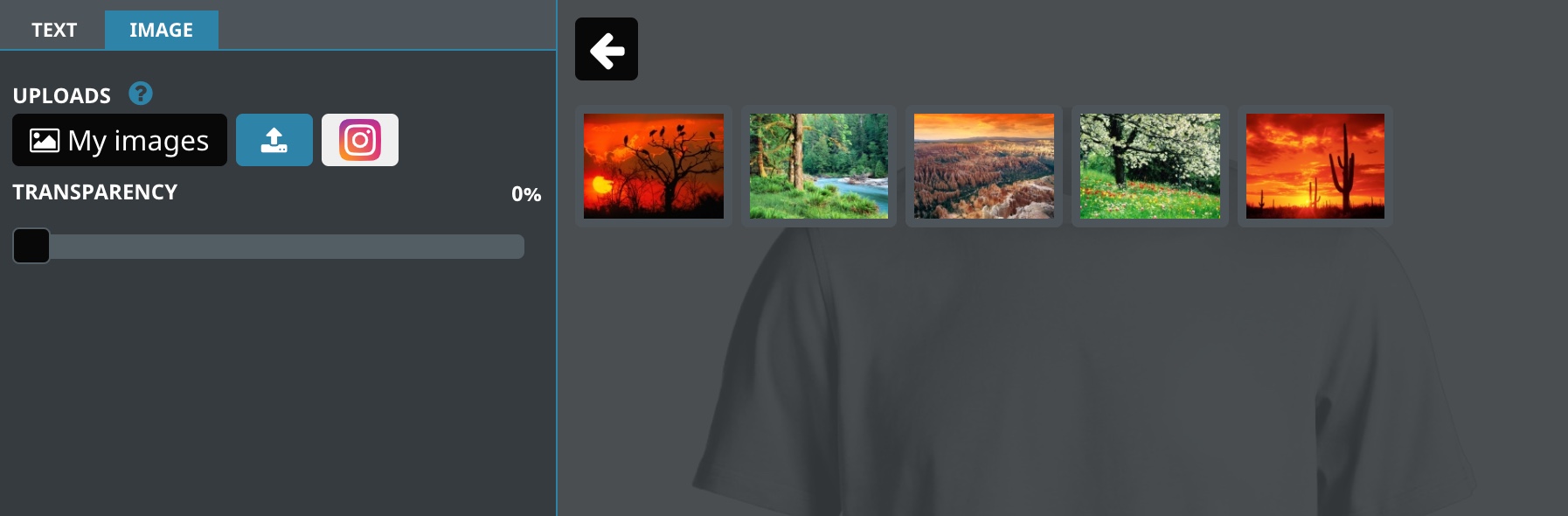
The images will be displayed like this
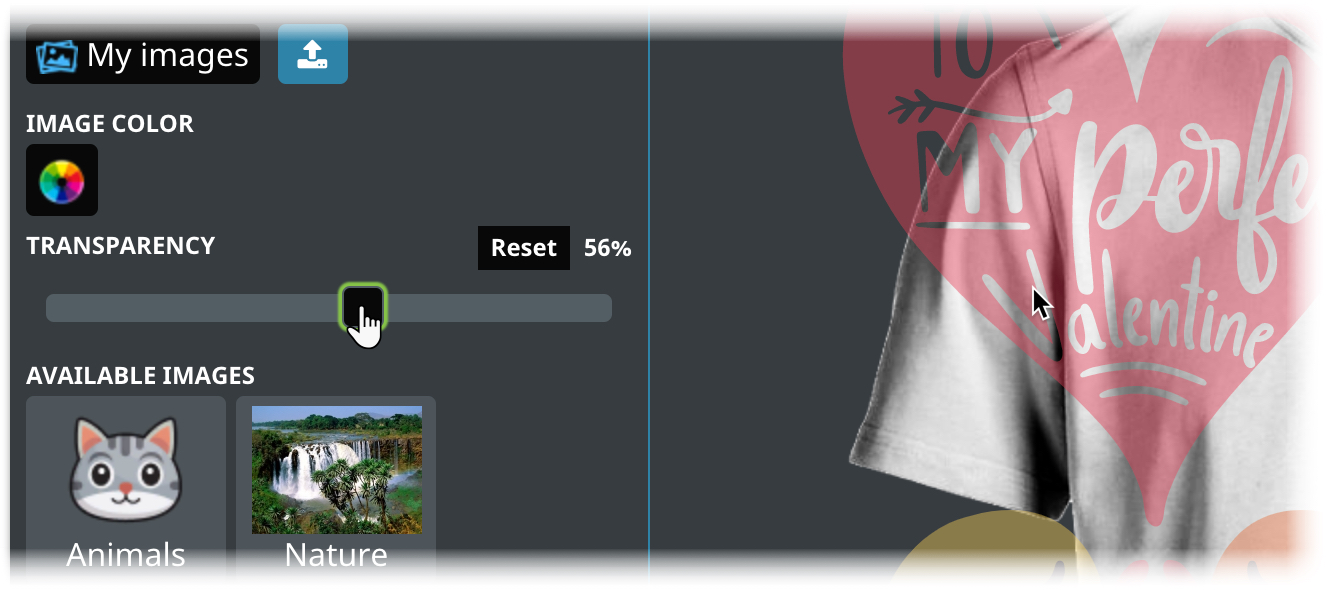
Enable image transparency
This will display a slider that changes the image transparency
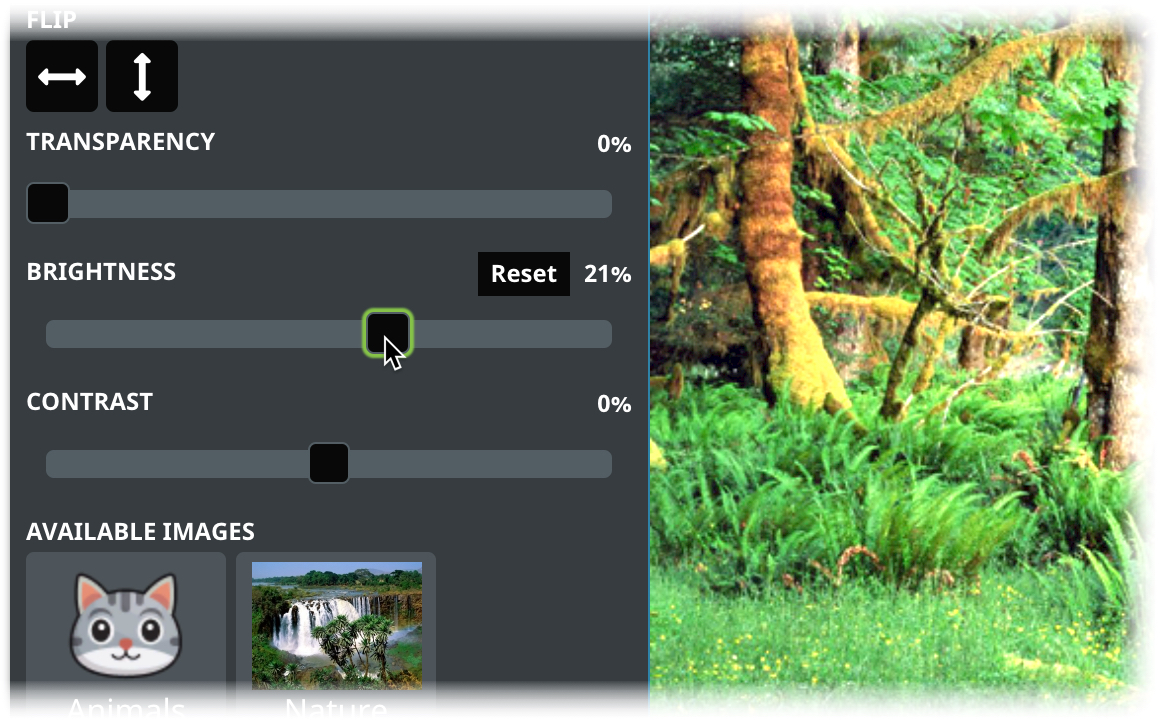
Enable image brightness
If enabled, a brightness slider will be displayed
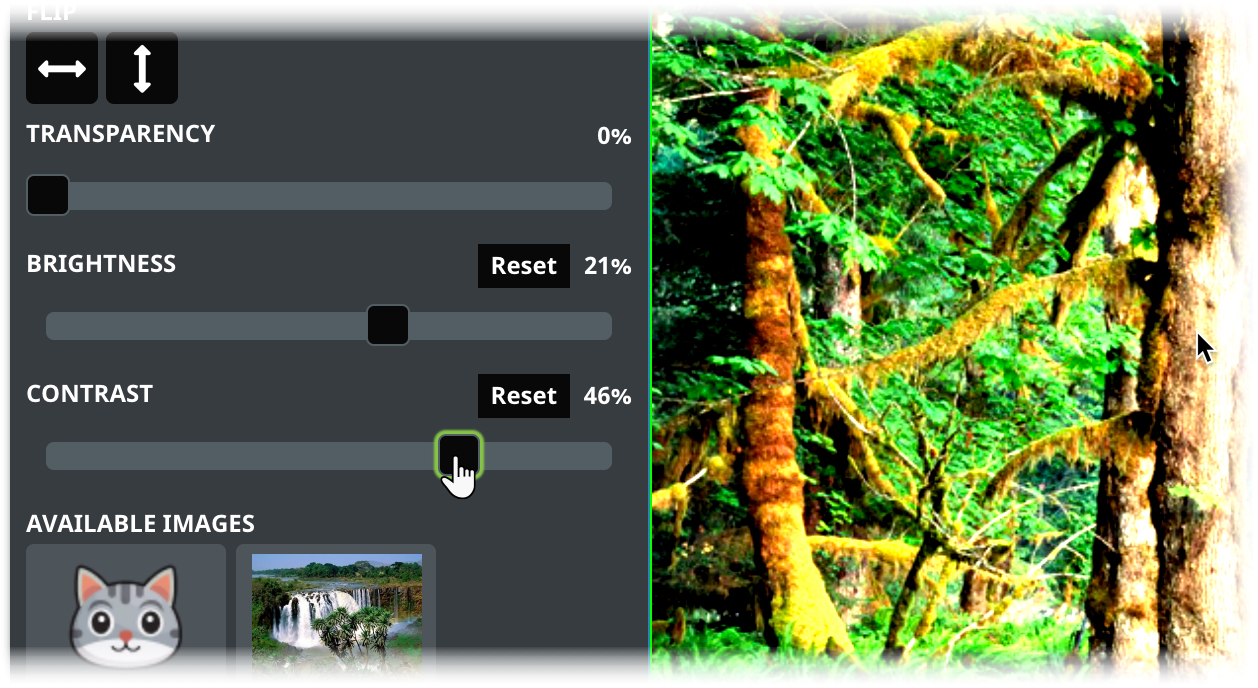
Enable image contrast
A contrast slider will be displayed if this option is active
Enable image flip
This will display horizontal and vertical flip buttons in the image tab